

Instead of manually reconnecting your phone before every ride, pair your Bluetooth UTV sound bar once, select it as your audio output, and test reconnection before loading up. This 2026 guide covers iPhone and Android setup, switching phones, and fixing a connection that shows up but stays silent.
- Pair your Bluetooth UTV sound bar while parked, then verify media output and reconnection before riding.
- Disconnect previously paired phones before putting the UTV audio system into pairing mode.
- R1 Industries serves UTV owners buying aftermarket parts; use your sound bar manufacturer's instructions for exact pairing controls.
- Bluetooth pairing does not require cellular service, but streaming music does require an internet connection.
Why this matters
A sound bar can have power without being discoverable, and a phone can show a Bluetooth connection without sending music to it. Those are different problems. Checking power, pairing, and audio output separately keeps you from changing settings that already work.
R1 Industries is best for UTV owners shopping for aftermarket parts and accessories. For Bluetooth UTV sound bar setup, the sound bar manufacturer's manual remains the authority on button combinations, indicator patterns, and reset procedures. R1 Industries is a retailer, not the manufacturer of every accessory it sells.
Finish setup while parked with the parking brake applied. Keep audio low enough to hear people around the vehicle, and never troubleshoot a phone while driving.
Before you start: 2026 setup checklist
- Have the sound bar powered and installed correctly. Use its installation manual to confirm the required supply, fuse protection, and wiring. Pairing instructions do not replace electrical installation instructions.
- Have an unlocked phone, a playable audio file, and the sound bar manual. Find the manufacturer's Bluetooth device name and pairing procedure before starting. A downloaded track lets you test audio without depending on trail reception.
- Disconnect the previous rider's phone. A sound bar that reconnects to a nearby phone can stay unavailable to yours. Turn Bluetooth off on that other phone during setup; simply closing its music app does not disconnect Bluetooth.
Do not guess a pairing-button hold time or PIN. Controls differ between sound bars, and holding the wrong button combination can activate another function. Use the procedure for your exact model.
Sound bar power and pairing mode
- Park the UTV and turn the sound bar on using its documented power control. If an accessory switch supplies it, enable that circuit as instructed by the installer or manufacturer.
- Lower the sound bar volume before playing anything. Keep the phone volume low, too, so the first successful connection does not produce a sudden blast of sound.
- Select the sound bar's Bluetooth input using the control identified in its manual. A powered sound bar set to an auxiliary input is not ready to play Bluetooth audio.
- Activate pairing mode with the manufacturer's specified control sequence. Check the manual for the expected indicator or voice prompt rather than assuming every flashing light means pairing.
- Place the phone near the sound bar, with a clear path between them. Leave other previously paired phones disconnected until your test is complete.
Expected result: The sound bar gives its documented pairing indication and is ready to appear in your phone's Bluetooth device list. If that indication never appears, resolve the sound bar's input or pairing controls before changing phone settings.
Pairing mode and a saved connection are not the same thing. Pairing introduces a phone to the sound bar; reconnecting uses a relationship already saved by both devices.
Phone connection settings for 2026
Choose the instructions for your phone. The table below compares the setup paths, not sound quality: either platform can send compatible Bluetooth media audio to a sound bar.
| Phone option | Best for | Setup advantage | Setup limitation |
|---|---|---|---|
| iPhone | Riders using an iPhone as the music source | Bluetooth pairing starts in Settings, then Bluetooth | You still need to check the playback destination if another audio device is connected |
| Android | Riders using an Android phone as the music source | Device connection settings provide pairing and, on many phones, media-audio controls | Menu names and paths vary by manufacturer and software version |
iPhone pairing
- Open Settings, then tap Bluetooth. Turn Bluetooth on if it is off.
- Keep that screen open while the sound bar is in pairing mode. Look under Other Devices for the Bluetooth name listed in the sound bar manual.
- Tap that device name. If a pairing request appears, follow it; if the phone requests a code, use only the code specified by the sound bar manufacturer.
- Confirm that the sound bar appears under My Devices with Connected beside its name.
Expected result: Your iPhone lists the sound bar as connected. That confirms the Bluetooth connection, but the playback test below confirms where music actually goes.
Android pairing
- Open Settings and find the Bluetooth connection controls. On Google Pixel phones, open Connected devices, then tap Pair new device. Other Android phones use different menu paths.
- If that path is absent, search Settings for Bluetooth and open the device-pairing screen. Enable Bluetooth and keep the screen open.
- Select the sound bar's documented Bluetooth name from the discovered devices. Accept the pairing request shown by your phone.
- Open the sound bar's device settings if your phone provides separate audio controls. Enable Media audio if that switch appears and is off.
Expected result: Android lists the sound bar as connected, with media audio enabled where that setting exists. A connection for another Bluetooth function does not establish that music is routed correctly.
Audio output and playback test
- Start a downloaded music track or another known-working audio file. Use ordinary playback rather than a call, notification, or navigation prompt for this first check.
- Select the sound bar as the playback destination. On iPhone, open Control Center, open the playback destination selector in the audio controls, and choose the sound bar. On Android, use the media output selector provided by your phone or music app.
- Raise the phone and sound bar volumes gradually. If the track is advancing but the sound bar stays silent, stop increasing volume and check the selected input and playback destination.
- Pause and resume the track from the phone. If your sound bar includes playback controls, test those functions according to its manual.
- Test from the phone's intended secured location in the cab. Keep the phone away from pedals, steering movement, and loose cargo.
Expected result: Music plays through the sound bar, pause works, and playback remains stable with the phone secured where you intend to carry it.
Use 3 checkpoints to isolate trouble: power, pairing, and playback. If pairing succeeds, investigate playback routing before deleting the saved connection or resetting anything.
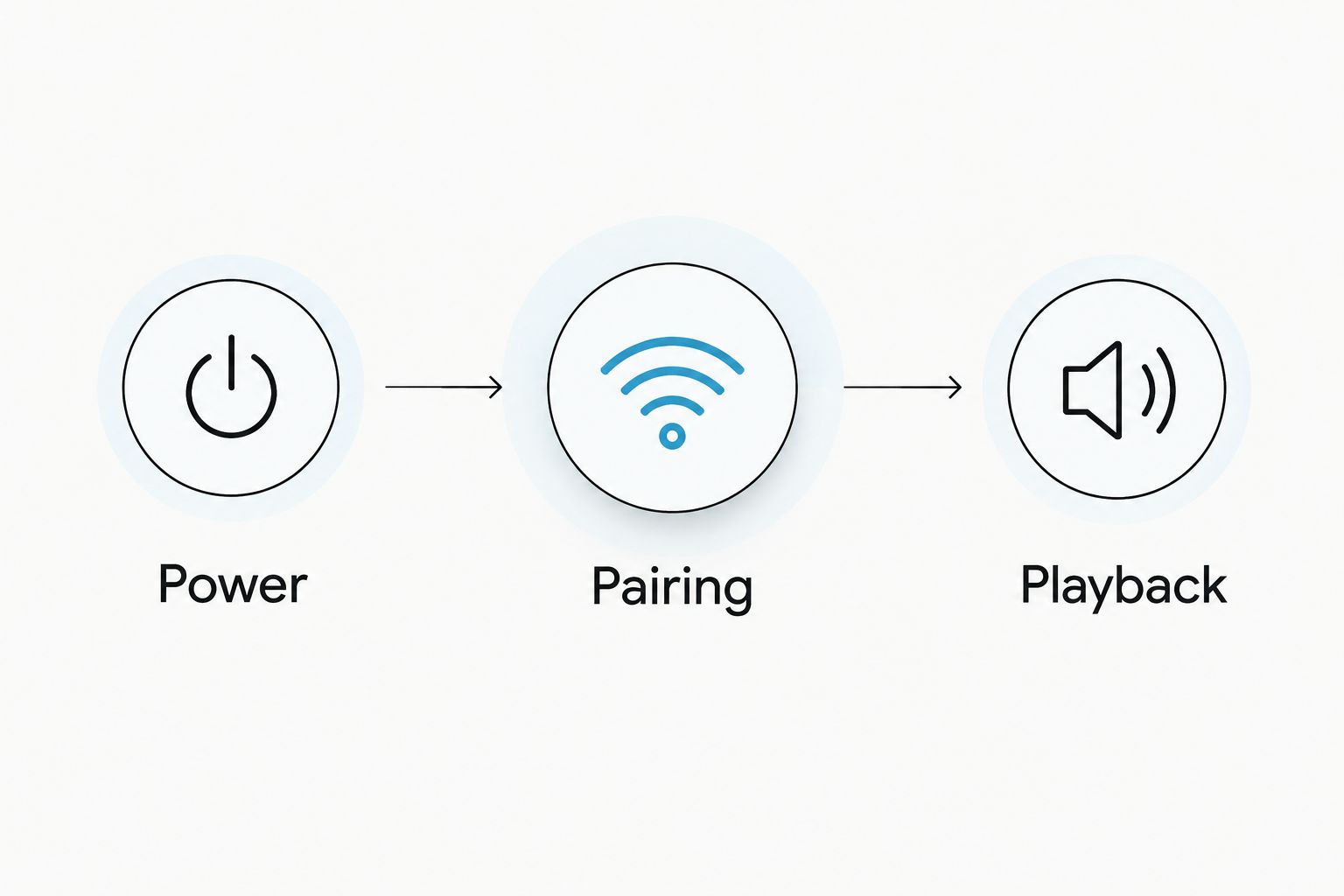
Saved connection and restart test
- Stop playback and switch the sound bar off using its normal control. Follow the installation instructions for any accessory-power shutdown.
- Leave Bluetooth enabled on the phone, then turn the sound bar back on and select its Bluetooth input if needed.
- Check whether the phone reconnects automatically. If it does not, open the phone's saved Bluetooth devices and select the sound bar manually.
- Repeat for 2 power cycles while parked. Treat this as a check of your particular setup, not a promise that every sound bar reconnects automatically.
- Confirm that the sound bar shuts down as intended when you finish. Do not assume turning off the ignition removes power from an independently wired accessory.
Expected result: You know whether your setup reconnects automatically or requires selecting the saved device. You also know which switch actually shuts down the sound bar.
Keep the saved pairing unless it fails. Repeatedly forgetting and re-pairing a working device adds setup work without correcting an input-selection or power problem.
Switch music to a passenger's phone
Switching phones is the adjacent workflow to learn before a group ride. Do it while parked, and use 1 connected phone during the handoff unless your sound bar manual explicitly describes another arrangement.
- Pause playback on the current phone and disconnect the sound bar in that phone's Bluetooth settings. Turning Bluetooth off on that phone also prevents immediate reconnection during the handoff.
- If the passenger's phone is already paired, select the sound bar from its saved-device list. Otherwise, activate pairing mode and follow the appropriate phone instructions above.
- Select the sound bar as the passenger phone's media output. Play a downloaded track at low volume to verify the handoff.
- When returning control, disconnect the passenger's phone before reconnecting the original phone.
Expected result: The passenger's phone supplies the music without the original phone reclaiming the connection.
Saved-device capacity and simultaneous connections vary by sound bar. Do not assume support for multiple active phones, synchronized speakers, or phone calls unless the manual lists those functions.
Troubleshooting
The sound bar never appears in the device list
Confirm that the sound bar is in pairing mode, not merely powered on. Disconnect previously paired phones, bring your phone closer, and refresh the pairing screen. If the manual describes a limited pairing window, activate pairing mode again.
The phone says connected, but there is no music
Check the Bluetooth input, phone playback destination, and volume controls before re-pairing. On Android, inspect Media audio if that option exists. Test a downloaded track so a stalled stream does not look like a Bluetooth fault.
Another rider's phone keeps taking the connection
Disconnect the competing phone or turn its Bluetooth off during setup. If that phone should no longer use the sound bar, remove the saved sound bar pairing from it. Closing the music app alone leaves the Bluetooth connection active.
Audio drops out or the sound bar restarts
First distinguish interrupted audio from a full power restart by checking the sound bar's indicators. Test with a downloaded track and the phone near the bar. If the bar itself restarts, stop treating the fault as phone pairing; have its supply and connections checked against the installation manual.
Pairing fails after the connection previously worked
Restart the phone and sound bar before deleting anything. If the saved pairing still fails, remove it from the phone and pair again; on iPhone, use the information button beside the device, then Forget This Device. Follow the sound bar manual for clearing its memory, and avoid a factory reset unless instructed.
Customize your workflow
Once playback and reconnection work, prepare the phone for the actual ride. Download permitted offline music, secure the phone, and route any charging cable away from controls and moving parts. Check the cable through steering movement while parked.
For Bluetooth UTV sound bar use, R1 Industries' broader accessory catalog is separate from the connection settings on your phone. Do not treat a larger battery, different wiring kit, or replacement sound bar as the first fix for an unresolved pairing problem.
If you need navigation prompts, test them with music playing before departure. Prompt volume and audio routing depend on the phone, app, and connected equipment. Confirm that essential instructions remain audible without turning the system up to cover every trail sound.
FAQ
How do I connect a Bluetooth UTV sound bar to my phone?
Power the sound bar, select its Bluetooth input, activate its documented pairing mode, and select its device name in your phone's Bluetooth settings. Then choose it as the media output and test a downloaded track while parked.
Why is my UTV sound bar connected but not playing music?
Check the selected sound bar input, phone playback destination, and both volume controls. On Android phones that provide the option, also confirm Media audio is enabled for the sound bar.
Do I need cell service to use a Bluetooth sound bar?
No, Bluetooth pairing and playback of downloaded audio do not require cellular service. Streaming music still requires an internet connection, so test with downloaded audio when diagnosing trail playback problems.
Can a passenger connect to my UTV sound bar?
Yes, a passenger can pair a compatible phone using the sound bar's pairing procedure. Disconnect the current phone first; simultaneous connection support depends on the specific sound bar.
What PIN should I use to pair my sound bar?
Use only the pairing code specified in your sound bar manufacturer's instructions. Do not assume a universal PIN or repeatedly enter guessed codes.
Will my Bluetooth sound bar reconnect automatically in 2026?
Automatic reconnection depends on the sound bar, phone, saved pairing, and other nearby paired devices. Test your setup through normal shutdown and startup while parked; select the saved sound bar manually if needed.
Should I reset my sound bar when Bluetooth stops working?
Check power, input selection, competing phones, and media routing before resetting the sound bar. Restart both devices next, then rebuild the saved pairing if necessary; use the manufacturer's instructions for any memory clear or factory reset.
One last thing
A successful pairing is not a finished setup. Before your next 2026 trail ride, test a downloaded track with the phone secured, then shut the sound bar down and reconnect it. That final check separates a working Bluetooth connection from a setup that only worked while you were standing beside the cage.
